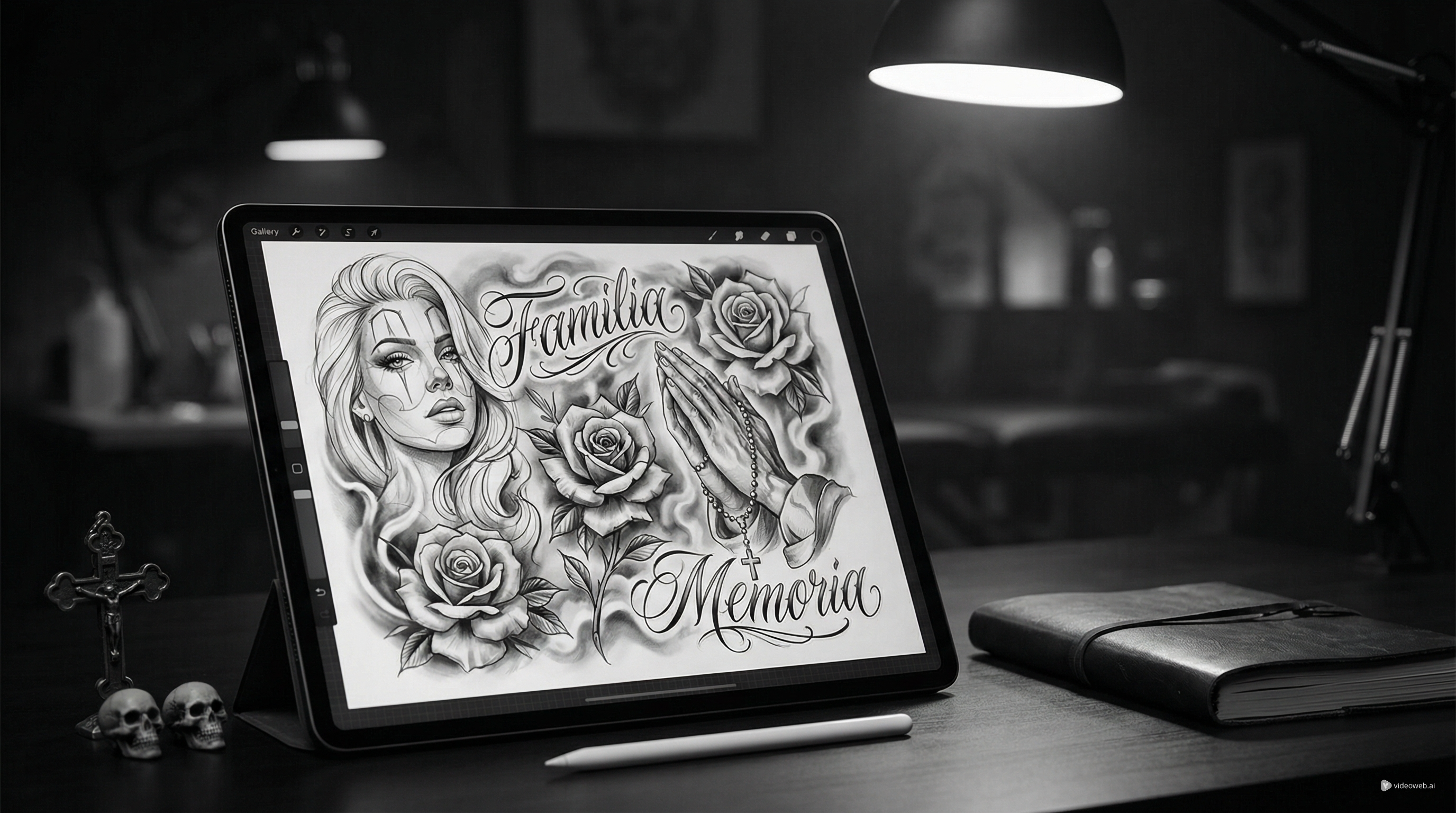
Chicano tattoo style has a distinctive visual language: black-and-grey shading, expressive portraits, script lettering, religious symbolism, lowrider culture references, roses, praying hands, and memorial elements that feel personal rather than generic. If you want to explore design directions before talking to an artist, TattooDesign AI gives you a practical way to turn rough ideas into polished image samples.
Instead of staring at a blank page, you can describe the mood you want, add a reference image if needed, adjust the format, and generate multiple concepts quickly. That makes it useful for people who already know what they want, as well as people who only have a theme, a memory, or a word in mind.
This guide walks through a simple process for creating a strong Chicano style tattoo concept with TattooDesign AI, including how to handle lettering, visual balance, and placement previews.
Understand the Look Before You Start
Before generating anything, it helps to know what gives a design that recognizable Chicano style feeling. The style is often built around black-and-grey realism, soft shading, emotional symbolism, and highly expressive details. Common themes include faith, family, remembrance, neighborhood pride, women’s portraits, script, dice, roses, crosses, candles, and cars.
That does not mean you need to put every element into one image. In fact, the best results usually come from choosing one central idea and building around it. A memorial piece, for example, may work better with a portrait, a name, a date, and roses than with five unrelated symbols fighting for space.
A good starting question is simple: what is the design supposed to express? Memory, loyalty, faith, struggle, love, heritage, or attitude? Once you know that, your prompt becomes much easier to write.
Build One Clear Concept First
The biggest mistake with AI tattoo prompts is overloading them. If you want a better Chicano tattoo style sample, start with one visual anchor.
For example, you might begin with one of these:
- a black-and-grey portrait with roses and soft smoke
- praying hands with script and a cross
- a lowrider-inspired memorial composition
- a sacred heart with ornamental framing
- a script-first concept with subtle background shading
Once you choose the anchor, add only supporting details that reinforce it. Instead of writing a long paragraph full of disconnected imagery, keep the description focused. A prompt like “black-and-grey Chicano portrait of a woman with roses, soft smoke, dramatic shading, clean white background, tattoo flash composition” is usually stronger than a prompt trying to include letters, clocks, angels, cars, tears, candles, skulls, and cityscapes all at once.
Use the Generator Settings to Shape Better Results
On the AI Tattoo Generator, the workflow is straightforward. You select a model, enter your tattoo description, optionally upload a reference image, and then choose settings like ratio, resolution, color options, and background.
For this style, black and grey is usually the strongest choice, because it matches the visual language most people expect from a Chicano style tattoo. A white background is also helpful if your goal is to generate cleaner concept art that is easier to review, save, or share.
If you are not sure what ratio to use, a square format is a good starting point for general concept generation. If you already know the piece is meant for a forearm, chest panel, or upper arm, you can experiment with a taller or wider composition later.
Reference images are optional, but they can help when you want a certain mood, frame, or lettering flow. Just make sure the image is being used as inspiration for layout or atmosphere rather than as something to copy directly.
Design a Chicano Lettering Tattoo That Still Feels Readable
A Chicano lettering tattoo can be the centerpiece of the design or part of a larger composition. Either way, readability matters. Script that looks beautiful but becomes hard to read on skin will not hold up well.
When you generate lettering-based concepts, keep the text short. Names, one-word themes, short phrases, and memorial dates usually work better than long quotes. You should also tell the generator what role the lettering plays. Is it the main subject, a banner under a portrait, or a secondary element around praying hands or roses?
A useful prompt structure is: subject + lettering purpose + shading style + composition. For example: “Chicano script tattoo design with the word ‘Familia,’ elegant flowing letters, black-and-grey shading, subtle roses behind the text, clean stencil-like layout on white background.”
That gives the model a job to do without making the image overly busy.
Refine Variations Instead of Settling for the First Output
One of the most useful parts of the AI Tattoo Design Generator workflow is that you do not have to accept the first result. The smartest way to use AI for tattoo concepting is to generate several variations, compare them, and identify what is actually working.
Maybe one version has the best portrait lighting, another has stronger script flow, and a third has the cleanest overall silhouette. That is already progress. You are not looking for a final tattoo straight from the machine. You are building visual references that help you and your tattoo artist discuss direction more clearly.
As you refine, adjust only one or two things at a time. Change the script placement. Remove the extra smoke. Add more negative space. Ask for softer shading. Strengthen the face. Simplify the background. Small revisions usually produce better results than rewriting the whole concept from scratch every time.
Preview Placement Before You Save Final Ideas
Once you have a few strong samples, the next step is to see how they may feel on the body. That is where AI Tattoo Try On becomes useful. A design that looks impressive on a blank canvas may feel too crowded on the forearm or too small for the upper arm.
Placement previews help you filter ideas quickly. You may realize that one Chicano style tattoo concept works better as a chest piece, while another reads more clearly as a forearm design. You may also notice that lettering needs to be enlarged or that portrait details should be simplified for the intended area.
At this stage, save your top concepts and organize them into a short shortlist. The best set usually includes one safe version, one bold version, and one balanced middle-ground version. That gives your artist enough material to work from without locking them into a rigid copy.
Final Thoughts
TattooDesign AI works best when you treat it as an idea-development tool rather than a replacement for tattoo artistry. It helps you explore Chicano tattoo style references faster, test composition ideas, and build clearer visual communication before the real design process begins.
If you start with one strong concept, keep the prompt focused, and refine your outputs with intention, you can generate image samples that feel much more personal and much less random. Whether you want a portrait-led concept, a script-heavy memorial piece, or a cleaner Chicano lettering tattoo direction, the platform gives you a practical place to begin.
Related Article
- How to Create Patch-Style Tattoo Ideas with TattooDesign AI
- How to Generate Fine-Line Tattoo Ideas with Tattoo AI Design’s FineLine Tattoo Generator
- Best Free Text-to-Tattoo AI Generators in 2026 (Plus a Top Pick)
People Also Read
- How to Turn Images Into Better AI Prompts
- A Practical Guide to AI Video Workflows from Images
- Prompt Ideas for Better AI Image Generation
- How Still Images Become Short Video Concepts
- A Beginner-Friendly Guide to AI Image Creation
Other Tools to Recommend
- AI Tattoo Generator for turning prompt ideas into visual tattoo concepts
- AI Tattoo Design Generator for refining composition and design variations
- AI Tattoo Try On for checking how a concept may look on the body
- Tattoo Style Library for exploring other aesthetic directions before choosing a final tattoo route