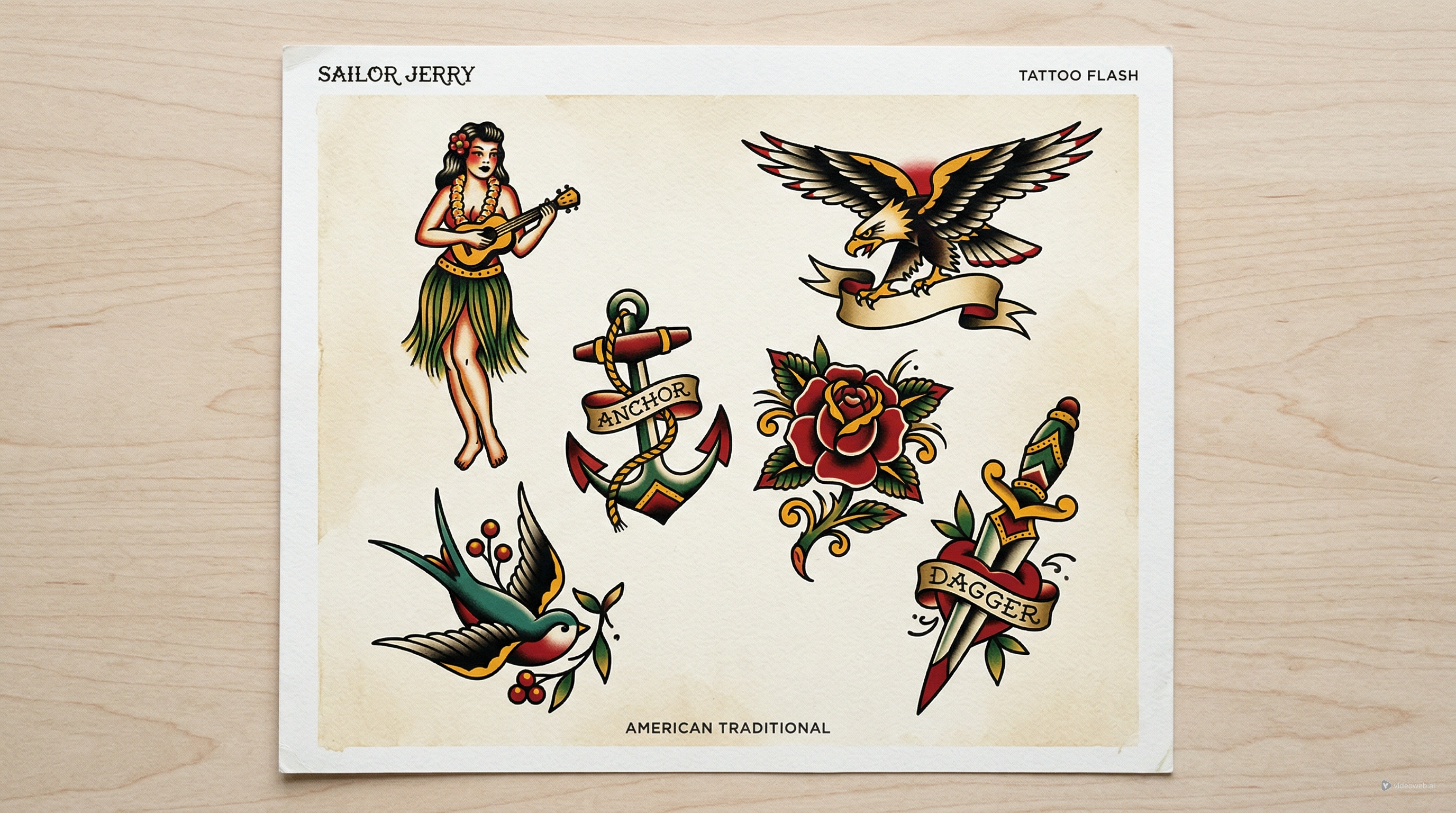
Sailor Jerry designs have never really gone out of style. Even people who are new to tattoo history can usually recognize the look right away: bold black outlines, strong color blocking, classic Americana imagery, and symbols that stay readable from a distance. That clarity is one reason the style still works so well in AI-assisted concept generation.
If you want to build vintage-inspired flash sheets, test motif combinations, or generate references before speaking with an artist, TattooDesign AI’s Sailor Jerry tattoo style generator gives you a fast way to explore ideas. In this guide, we’ll look at how to use it well, what prompts produce better results, and how to turn a rough concept into something worth saving.
Why Sailor Jerry Still Works So Well in AI Tattoo Generation
The reason this style translates well to AI is simple: it is visually disciplined. Traditional motifs are built around clear silhouettes, limited palettes, and instantly recognizable symbolism. Those qualities make it easier for an image generator to return something usable instead of a muddy or overdesigned result.
This is also why so many people searching for an American traditional tattoo eventually land on Sailor Jerry-inspired work. The style has a strong structure. Anchors, swallows, daggers, roses, ships, pin-ups, hearts, and snakes all follow a design language that feels consistent across generations.
Another reason people love it is symbolism. A lot of users are not only looking for visuals. They also want to understand Sailor Jerry tattoo meaning before choosing a direction. Swallows can suggest return, loyalty, or miles traveled. Nautical stars often hint at guidance. Eagles, ships, and hula girls each carry their own old-school associations. When you know the meaning first, your prompt becomes more focused.
Start with One Strong Motif Instead of a Vague Prompt
The easiest mistake is typing something too broad, like “make me a cool traditional tattoo.” That usually leads to generic outputs. A better approach is to start with one main subject and then add supporting elements.
For example, if you want a travel-themed design, begin with a Sailor Jerry swallow tattoo and then add a banner, stars, or a small rose. If you want something more playful and iconic, try a Sailor Jerry hula girl with tropical flowers, bold contour lines, and a vintage color palette.
This matters because the tool works best when it has a subject to organize around. In practice, the strongest prompts usually follow a simple pattern:
main motif + secondary symbols + line treatment + color direction + background instruction
So instead of “old tattoo style,” you might write:
Traditional swallow with spread wings, red and mustard accents, bold black outline, small stars, vintage banner, white background.
That kind of prompt gives the model enough direction without making the image too cluttered.
How to Use TattooDesign AI for Better Sailor Jerry Concepts
TattooDesign AI’s interface is straightforward, which is good for this style. You can enter a text description, upload a reference image, choose a model, pick a ratio, and control details like resolution, color options, and background.
If your goal is to create clean Sailor Jerry tattoos for idea generation, start with these settings:
- Use a square ratio for single-subject concepts or flash-style layouts.
- Choose a clean white background if you want something easy to save or show to a tattoo artist.
- Start with classic color if you want a true old-school look, or black and grey if you only need line-focused references.
- Keep the prompt focused on one subject during the first round.
The optional reference upload is especially helpful if you want the result to feel like real Sailor Jerry tattoo flash. You are not trying to copy an existing piece exactly. You are giving the generator a visual cue for layout density, icon balance, and old-school energy.
Prompt Tips That Usually Produce Better Results
When people say AI “doesn’t get” tattoo design, the problem is often the prompt. Image generators respond better when tattoo-specific qualities are spelled out clearly.
Helpful phrases include:
- bold black outline
- vintage flash sheet
- limited classic color palette
- clean white background
- flat shading
- high contrast
- symmetrical composition
- banner text area
- old-school tattoo illustration
Here is a simple starter prompt:
Sailor Jerry swallow, bold black outline, red and yellow accents, small stars, white background, vintage flash aesthetic.
And here is a more developed version:
Classic eagle and dagger composition in old-school tattoo style, heavy black linework, muted red, mustard yellow, deep green, rope details, banner below, centered composition, clean white background.
The goal is not to overload the prompt. It is to help the model understand the logic of the image. That is especially useful when you want the output to feel true to classic Sailor Jerry tattoos rather than like a random retro illustration.
Generate Variations Like a Flash Artist, Not Like a One-Shot User
A lot of people stop after one output. That is usually a mistake. Tattoo generation works better when you think in sets.
Instead of making one image and deciding immediately, generate several versions of the same concept. Keep the motif, but change the pose, border, banner, color intensity, or supporting icons. A swallow can be front-facing, diving, paired, framed by stars, or combined with a heart. A hula girl can be playful, elegant, tropical, or more minimal.
This is how a useful concept sheet starts to appear. You are not only generating one image. You are building options. In that sense, AI becomes closer to a mood-board or rough Sailor Jerry tattoo style ideation tool than a final art machine.
If one result feels too busy, simplify it. If another feels empty, add a banner, flowers, or a second icon. Small changes matter more than massive rewrites.
How to Judge Whether the Result Is Actually Tattoo-Friendly
Not every good-looking AI image makes a good tattoo reference. Before saving a result, check whether it would still read clearly on skin.
A usable concept usually has:
- a strong silhouette
- enough negative space
- bold, readable line hierarchy
- limited tiny details
- clear contrast between subject and background
This is where Sailor Jerry tattoo meaning becomes useful again. If you know what the symbol is supposed to communicate, you can judge whether the design still feels legible and intentional. A swallow should still read as a swallow. A hula girl should still hold the right personality. A ship or anchor should not collapse into decorative clutter.
The best way to use AI is as a planning layer. Generate your ideas, save the most readable options, and bring those to a professional tattoo artist. They can then adjust scale, anatomy, line weight, and placement for real skin.
Final Thoughts
TattooDesign AI is especially well suited to old-school concepts because classic tattoo language is direct, bold, and highly structured. If you begin with one clear motif, use focused prompts, and generate variations thoughtfully, you can create a strong set of Sailor Jerry-inspired references in a short time.
Whether you want a swallow, a hula girl, a dagger, or a full flash-style sheet, the tool is most useful when you treat it as a concept generator rather than a replacement for tattoo craft. Used that way, it becomes a practical way to explore style, symbolism, and composition before the real design process begins.
Other Tools to Try
Related Article
- How to Generate Japanese Tattoo Ideas with Tattoo AI Design’s Japanese Tattoo Generator
- How to Generate Fine-Line Tattoo Ideas with Tattoo AI Design’s FineLine Tattoo Generator
- How to Use Seadream 5.0 to Create a Tattoo Stencil
- How to Try On the Tattoo on Your Body Photos: A Complete Guide to Virtual Ink
People Also Read
- Seedream 5.0 Image Generation Guide on HeyDream AI
- Nano Banana Pro on DreamMachine AI: A Practical Way to Create Better AI Images
- Best Prompts of Flux.1 AI for Flux Images
- VideoWeb AI Image Generator 2026: The Creator Switchboard for Fast-to-Final Images
- How to Use Sea Imagine AI’s Image Generator: A Beginner-Friendly Tutorial