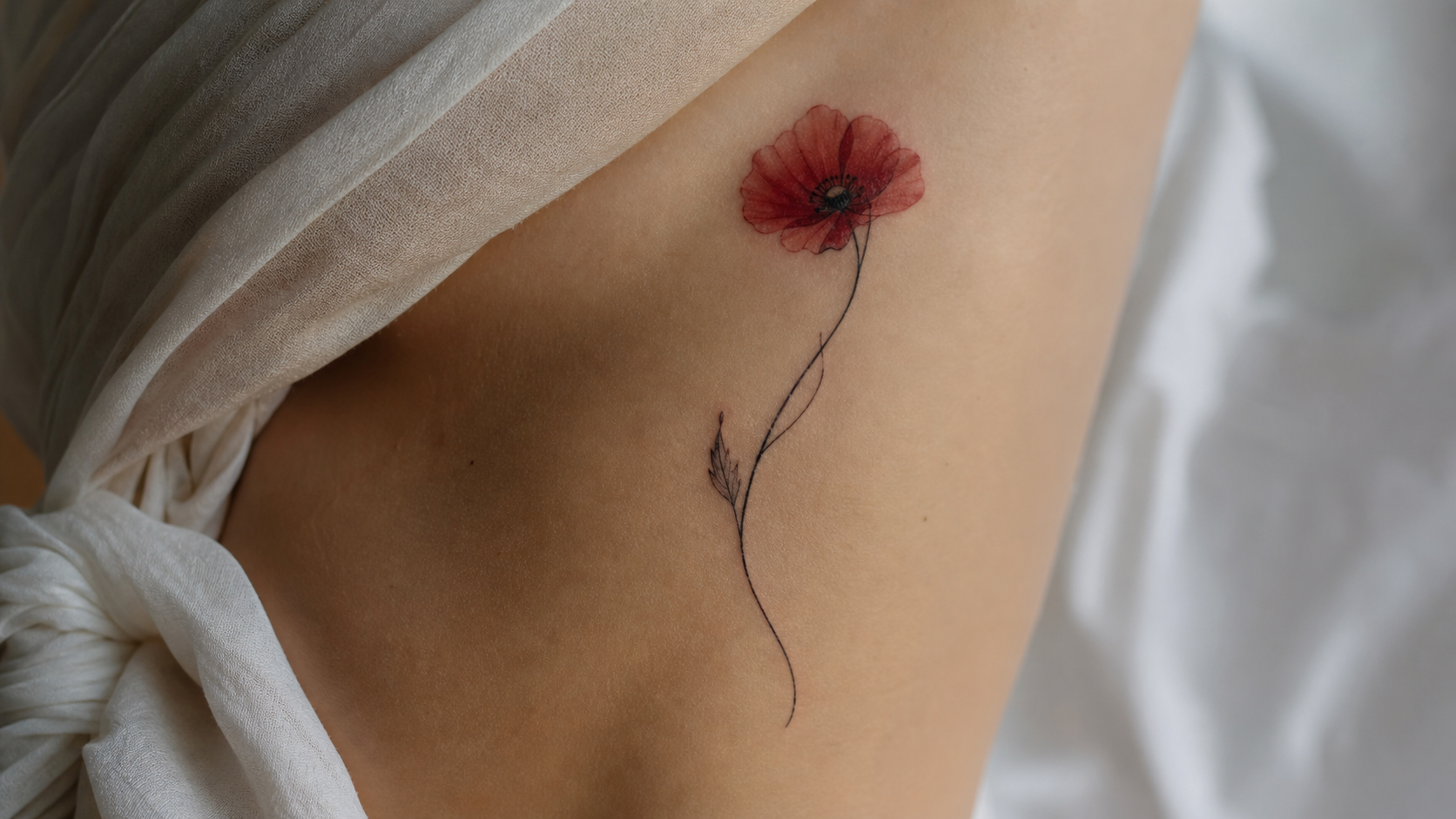
A cherry blossom tattoo can look soft, elegant, symbolic, or bold depending on how you describe it. The challenge is not only choosing “sakura” as a theme. You also need to decide the style, placement, line weight, color direction, branch shape, and background before the design becomes useful.
The Cherry Blossom Tattoo Generator on Tattoo AI Design helps you turn those details into visual tattoo concepts. It can create traditional and modern sakura-inspired designs, including minimalist line art, black-and-grey floral tattoos, watercolor petals, Japanese-inspired branch compositions, and clean tattoo sketches for review.
This guide shows how to use the page in a simple way, how to write a better tattoo description, when to upload a reference image, and how to refine your results before showing a concept to a professional tattoo artist.
1. What Is the Cherry Blossom Tattoo Generator?
The Cherry Blossom Tattoo Generator is a tool for creating AI-generated cherry blossom tattoo concepts. Instead of browsing random pictures and trying to imagine how they might fit your body, you can describe the tattoo you want and generate a visual direction.
A cherry blossom tattoo often connects with beauty, renewal, life, impermanence, and Japanese-inspired aesthetics. But the tool is not only for symbolism. It is most useful when you need a practical design idea: a fine-line forearm tattoo, a soft pink shoulder piece, a black-and-grey branch, a Japanese-style sleeve, or a small sakura wrist tattoo.
Think of the generator as a concept builder. It gives you visual options you can compare, save, and refine. The final tattoo should still be discussed with a professional tattoo artist, especially if you want the design adjusted for skin, body placement, and long-term readability.
2. How to Generate a Cherry Blossom Tattoo Step by Step
-
Open the Cherry Blossom Tattoo Generator page.
-
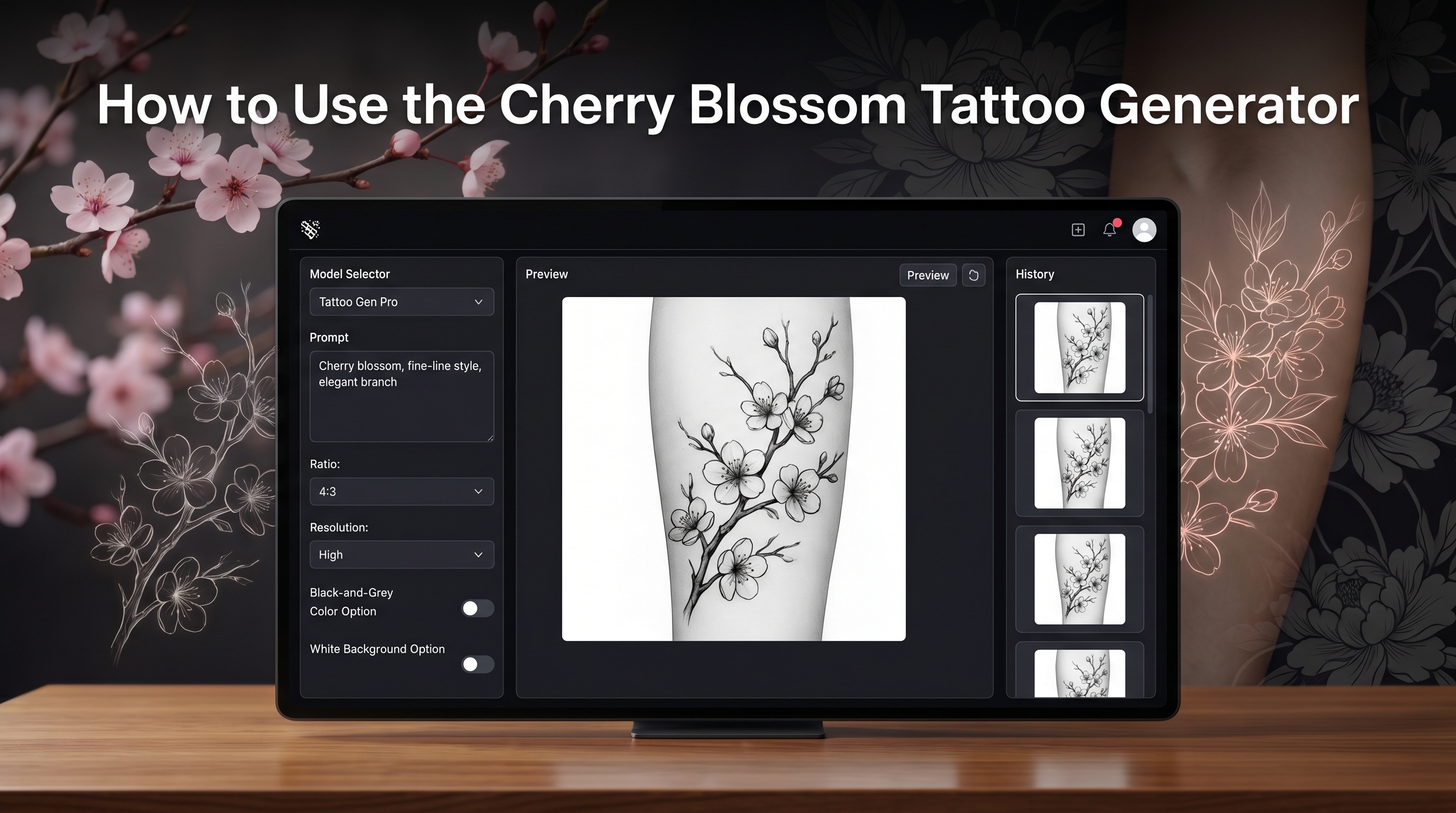
Select an AI model. Choose the available model that best fits your preferred design quality and style interpretation. If you are unsure, start with the default option and compare results later.
-
Write a clear tattoo description. Describe the flowers, branch direction, style, placement, mood, and color direction. A short but specific prompt is better than a vague one.
-
Turn on Translate if needed. If you prefer writing in another language, the translation option can help turn your idea into a prompt the generator can process more smoothly.
-
Upload a reference image if you have one. This is optional, but helpful when you already know the pose, flower shape, branch flow, or body placement you want.
-
Choose the ratio. Use 1:1 for concept boards or balanced sketches. Choose a vertical ratio for forearm, calf, spine, or sleeve ideas. Use a wider ratio for back, chest, or shoulder-spread concepts.
-
Choose the resolution. A higher resolution is better when you want clearer detail for petals, line work, branches, or shading.
-
Select color options. Black and grey works well for elegant, timeless sakura designs. Color or watercolor directions can make petals feel softer, brighter, or more expressive.
-
Choose the tattoo background. A white background is best for reviewing clean design shape. A skin-style or preview-style background, if available, can help you imagine placement.
-
Decide whether to keep the result public. Use the public setting based on whether you want the generated image visible in shared areas or kept private.
-
Click Generate. Let the tool create your tattoo concept based on the description and settings.
-
Review the result in Image History. Compare versions, keep the strongest design, and use the best one as a reference for your next prompt or tattoo consultation.
3. What to Write in the Tattoo Description Box
The tattoo description box is where your idea becomes clear. A strong prompt should include the flower shape, branch direction, tattoo style, line weight, body placement, background, and mood. You do not need to write a long paragraph. You need the right details.
For example, if you want soft cherry blossom tattoo ideas, try: “Minimalist cherry blossom branch, fine-line style, soft petals, designed for inner forearm, clean white background.” This tells the generator the subject, style, placement, and layout.
For a stronger sakura tattoo design, you could write: “Black and grey sakura branch with flowing petals, elegant wind movement, medium line weight, designed for shoulder placement.” If you want a Japanese cherry blossom tattoo, include Japanese-style composition, curved branches, cloud or wave elements, and a sleeve or back placement.
Good tattoo prompts avoid confusion. Do not mix too many styles at once. “Minimalist, realism, watercolor, geometric, traditional Japanese, full sleeve, tiny wrist tattoo” is too crowded. Choose one main direction, then refine from there.
4. Choosing Model, Ratio, Resolution, Color, and Background
The model affects how the tool interprets your tattoo description. Some image models are better for soft illustration, while others may be better for sharper detail or modern design concepts. Start simple, then compare results if multiple models are available.
Ratio controls the shape of your design. A square ratio is useful for exploring general concepts. A vertical ratio is better for arm, leg, spine, rib, and sleeve ideas. A wide ratio works better for chest, back, collarbone, or shoulder-spread designs.
Resolution matters when the design has fine petals, thin branches, small leaves, or detailed shading. Use higher resolution when you need clearer details for review. You still need a tattoo artist to translate the image into a tattoo-ready stencil or final artwork.
Color options change the mood. Black and grey tattoo designs feel classic, subtle, and easy to compare. Pink watercolor floral tattoo ideas feel soft and expressive. Minimalist line-art directions are good for small placements. Full-color sakura designs can feel more decorative and lively.
Tattoo background is useful for review. A white background keeps the design clean and easy to judge. If preview-style backgrounds are available, they can help you imagine how the piece might sit on skin.
5. When to Use a Reference Image
A reference image is helpful when words are not enough. Use one when you want a specific branch curve, flower shape, pose, sleeve flow, shoulder placement, or visual mood. It can also help if you already have a sketch and want the AI to explore cleaner versions.
The AI Tattoo Generator and AI Tattoo Design Generator can also support broader tattoo concept creation when you want to move beyond one style page.
Use references as direction, not as something to copy exactly. Another artist’s tattoo should not be duplicated. A better approach is to borrow general guidance such as “thin branch flow,” “soft petal spacing,” or “vertical forearm composition,” then generate an original concept.
6. How to Refine Your Cherry Blossom Tattoo Idea
After your first result, refine one thing at a time. If the image feels too busy, simplify the prompt. If the flowers look too soft, ask for sharper line work. If the design feels too heavy, request fine-line branches and more negative space. If the color feels too bright, switch to black and grey or muted watercolor.
Placement also matters. A forearm sakura tattoo needs a different flow than a back tattoo design. A shoulder cherry blossom tattoo may need curved branches that follow the body. A floral sleeve tattoo idea may need connected movement, not isolated flowers.
You can also compare related styles. Try the Japanese Tattoo Generator for bolder cultural composition, the Watercolor Tattoo Generator for soft ink-wash color, the Realism Tattoo Generator for natural flower detail, the Fineline Tattoo Generator for delicate lines, or the Geometric Tattoo Generator for structured floral patterns. If you are comparing flower symbolism and shapes, the Rose Tattoo Generator and Lotus Flower Tattoo Generator are useful next steps.
7. Final Recommendation: Who Should Use This Tool?
The Cherry Blossom Tattoo Generator is useful for first-time tattoo planners, floral tattoo lovers, fans of Japanese-style aesthetics, tattoo artists who want quick reference sketches, and anyone comparing styles before committing. It is especially helpful if you have a rough idea but do not know how to describe it visually.
Use the tool to explore options, not to replace a professional artist. Save your favorite result, note what you like about it, and bring it to a tattoo artist for feedback. AI can help you find direction faster, but the final tattoo should be adapted by a professional for body placement, readability, and personal meaning.
Cherry Blossom Tattoo Prompt Examples
1. Minimalist Fine-Line Cherry Blossom Tattoo
Minimalist cherry blossom branch tattoo, fine-line style, three small blossoms and a few falling petals, delicate thin line weight, designed for inner forearm placement, calm and elegant mood, black ink only, clean white background.
2. Black and Grey Sakura Branch Tattoo
Black and grey sakura branch tattoo, flowing diagonal branch with soft petals, gentle wind movement, medium line weight, subtle shading, designed for upper arm placement, graceful and timeless mood, white background.
3. Watercolor Cherry Blossom Shoulder Tattoo
Watercolor cherry blossom tattoo for shoulder placement, soft pink sakura petals, light ink-wash effect, curved branch following the shoulder shape, delicate black outline, airy romantic mood, clean white background.
4. Japanese-Style Cherry Blossom Sleeve Concept
Japanese-style cherry blossom sleeve concept, sakura branches flowing around the arm, layered petals, wind bars and soft cloud elements, bold composition, black and grey with muted pink accents, dynamic movement, white background.
5. Small Cherry Blossom Wrist Tattoo
Small cherry blossom wrist tattoo, tiny sakura flower with two falling petals, ultra-fine line work, minimal shading, simple and personal mood, black ink, designed for small wrist placement, clean white background.
6. Realism Cherry Blossom Back Tattoo Concept
Realism cherry blossom back tattoo concept, natural sakura branch spreading across upper back, detailed petals, soft shadows, realistic flower texture, black and grey with subtle blush tones, elegant balanced composition, white background.
7. Geometric Cherry Blossom Tattoo Design
Geometric cherry blossom tattoo design, sakura flowers combined with thin circle and triangle line geometry, balanced symmetry, fine-line black ink, modern minimal mood, designed for forearm or upper back placement, clean white background.
8. Cherry Blossom and Moon Tattoo Concept
Cherry blossom and crescent moon tattoo concept, curved sakura branch wrapping around a thin crescent moon, fine-line style, soft falling petals, black and grey with optional pale pink accents, dreamy quiet mood, white background.
Recommended Tattoo AI Design Tools
- AI Tattoo Generator — useful for exploring general tattoo ideas across different styles and placements.
- AI Tattoo Try On — helpful when you want to preview how a tattoo concept may look on a body area.
- AI Tattoo Design Generator — practical for building custom tattoo sketches from a written idea.
- AI Tattoo Video Generator — useful for turning tattoo concepts into short visual presentations.
- Seedream 4.5 Image AI — helpful for generating polished image concepts and tattoo-style references.
- WAN 2.6 Video AI — useful for video-based tattoo presentations and motion previews.
Related Tattoo Generator
- Japanese Tattoo Generator Guide for Traditional and Modern Ideas
- Watercolor Tattoo Ideas for Soft Floral Tattoo Designs
- Realism Tattoo Design Guide for Detailed Tattoo Concepts
- Fine-Line Tattoo Prompt Guide for Minimalist Designs
- Geometric Tattoo Ideas for Clean Structured Designs
- Rose Tattoo Generator Guide for Floral Tattoo Inspiration
- Lotus Flower Tattoo Design Guide for Elegant Floral Concepts
- AI Tattoo Try-On Workflow for Previewing Tattoo Placement
People Also Use
- AI Image Prompt Ideas for Creative Visual Concepts
- AI Video Workflows for Turning Designs Into Motion
- Image-to-Video Ideas for Visual Storytelling
- Creative Image Generation for Style Exploration
- AI Model Access for Advanced Image Workflows
- AI Model Updates for Image and Video Creators
- UGC Creative Ideas for Visual Campaigns
- AI Chat and Image Tools for Prompt Planning
- Virtual Try-On Workflows for Fashion and Style Content