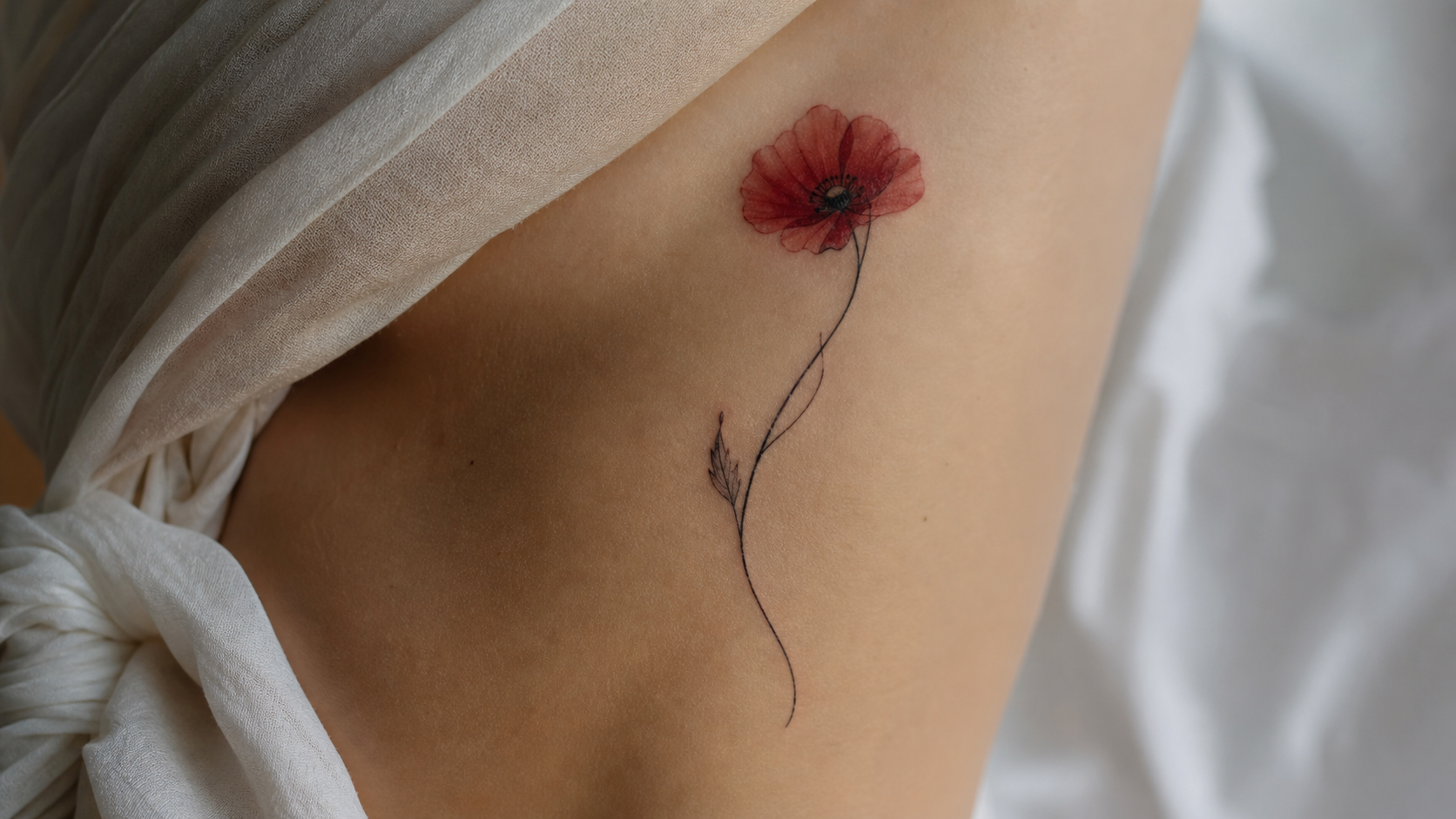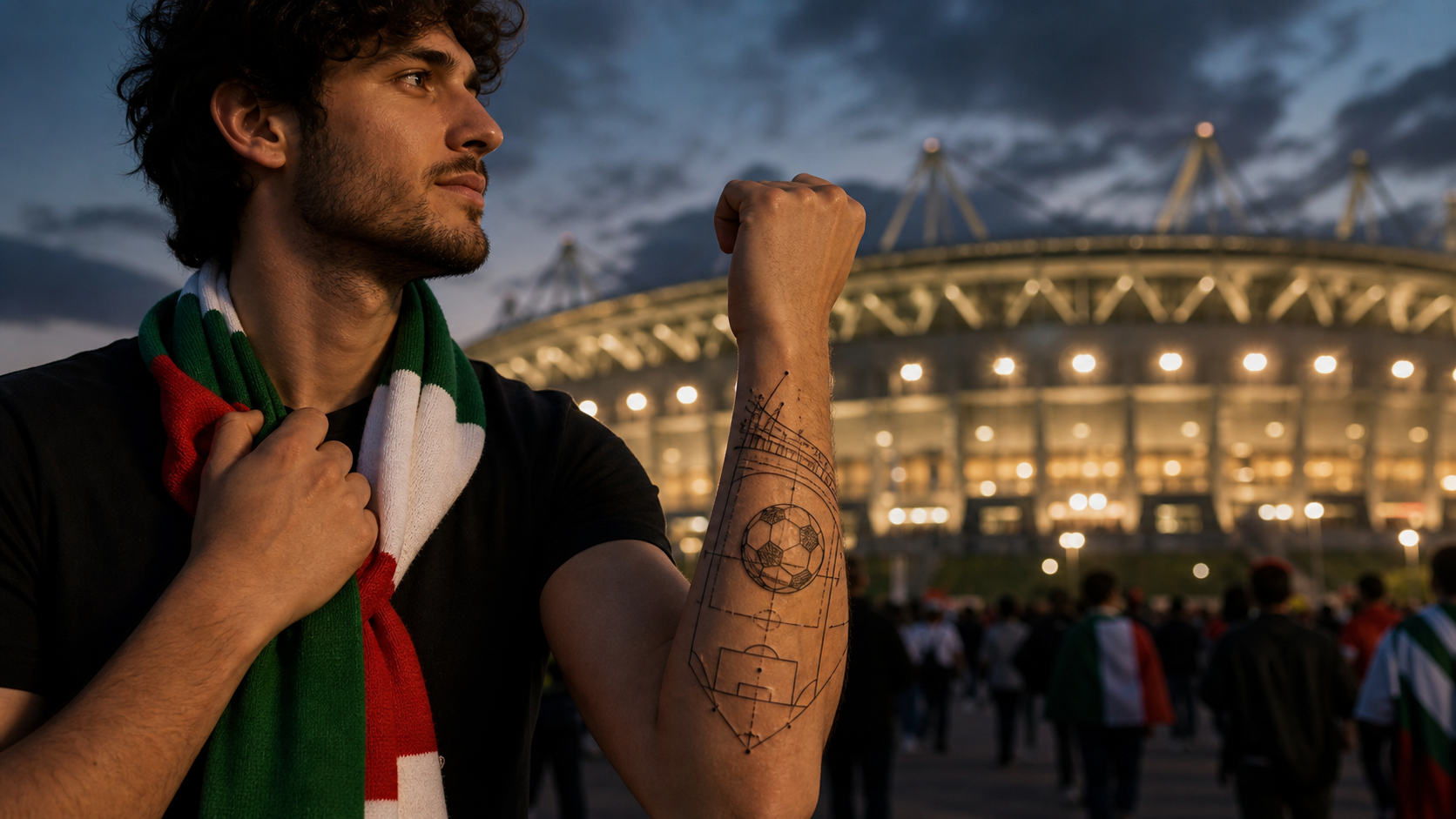
If you love tattoos that feel expressive, story-driven, and more artistic than purely traditional flash, the illustrative direction is a great place to start. It combines the clarity of tattoo design with the freedom of drawing, sketching, shading, and visual storytelling. That is exactly why many people begin exploring an Illustrative Tattoo before they ever speak with an artist.
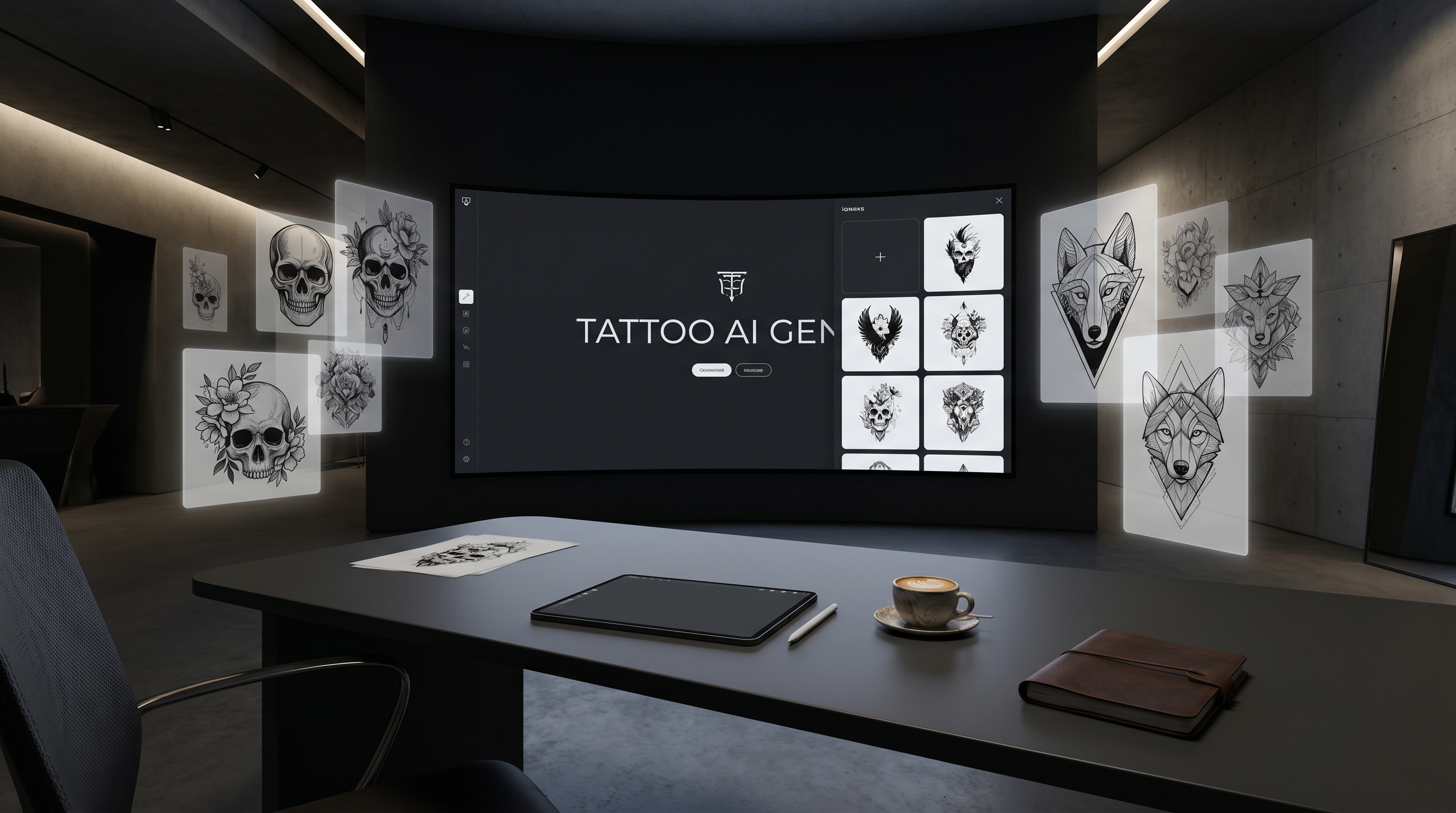
The easiest way to build those concepts quickly is to use TattooDesign AI’s Tattoo Generator to turn a rough idea into visual samples you can refine. Instead of staring at a blank page and trying to describe your dream tattoo from scratch, you can generate multiple versions, compare compositions, and get much closer to the style you actually want.
This guide walks through a simple process for creating strong illustrative tattoo concepts, even if you are starting with only a vague image in your head.
Start with a clear concept, not just a random subject
A lot of people begin with a single word like “wolf,” “flower,” or “angel,” but that usually produces generic results. A better approach is to start with a concept. Ask yourself what you want the tattoo to feel like. Do you want it to look dark, poetic, delicate, mythic, or dramatic? Do you want it to tell a story, symbolize a memory, or simply look visually powerful on the skin?
That extra layer of intention matters because the illustrative tattoo style works best when it has mood and structure. This style often blends realism, ink drawing, etching, fine line detail, and expressive composition. In other words, it is not just about the object itself. It is about how the object is interpreted.
Before generating anything, write down four things: your main subject, the emotional tone, the placement idea, and any symbolic elements you want included. For example, instead of typing “moth tattoo,” you might describe “a moonlit moth with branch details, elegant shading, and a mysterious gothic mood for the upper arm.” That small shift already gives the generator a stronger creative direction.
Build a prompt like a design brief
Once you have the concept, the next step is turning it into a prompt that reads more like a mini art brief than a casual sentence. The good news is that you do not need to sound technical. You just need to be specific.
A useful structure is: subject + visual mood + line quality + shading style + composition + background preference. This gives the generator enough direction without boxing it in too early. For example, you might describe a raven with thorn branches, flowing hand-drawn lines, dramatic negative space, and a white background for clean presentation.
When you use TattooDesign AI’s Tattoo Generator, it helps to keep the prompt visually descriptive rather than overly abstract. Instead of saying “make it cool,” say “etched linework,” “storybook composition,” “ink illustration look,” or “detailed ornamental framing.” These phrases are much easier for an image model to interpret.
If you already have inspiration images, rough sketches, or even screenshots of tattoos you like, upload them as references. That step can make the output far more consistent, especially when you want a very particular layout or level of detail.
Use blackwork structure to make the design read better
One reason some AI tattoo concepts feel messy is that they have too many fine details without a strong foundation. That is why it often helps to think in terms of a blackwork tattoo first, even if your final idea is more layered and expressive.
Blackwork gives the design shape, contrast, and visual readability. It helps the main subject stand out and keeps the tattoo from dissolving into noise. In practice, this means asking for stronger silhouettes, cleaner outlines, intentional shadow areas, and better use of negative space.
This is especially useful for forearm, calf, shoulder, and thigh concepts, where the tattoo needs a strong overall read before the viewer notices the finer details. When a concept looks good in simple black and grey contrast, it usually becomes much easier to refine later.
Inside the generator, choose settings that support that structure. A black-and-grey color option is often the most helpful starting point, especially when testing composition. It keeps the focus on line, balance, and shadow rather than distracting color choices.
Blend detail and contrast for a more illustrative blackwork look
After the structure is working, you can push the concept into something richer and more atmospheric. This is where an illustrative blackwork tattoo becomes especially appealing. It keeps the bold visual strength of blackwork, but adds the expressive detail that makes illustrative pieces feel alive.
This is the stage where you can introduce etched textures, sketch-like marks, ornamental borders, layered symbols, smoke, florals, halos, wings, moon phases, or other elements that support the story of the piece. The key is to build around a clear focal point rather than decorating every inch equally.
A good rule is to think in layers. Start with the central subject. Then add a secondary framing element. Then add a subtle atmospheric detail. That usually creates enough depth without overwhelming the composition.
If the first result looks too busy, simplify the prompt instead of adding more words. AI generators often perform better when you reduce clutter and strengthen the hierarchy of the design.
Generate variations instead of chasing the perfect first image
One of the biggest advantages of using AI for tattoo ideation is speed. You do not need the first output to be perfect. In fact, it is usually better if it is not. The real value comes from generating several directions and comparing what works.
This is especially true for illustrative tattoos, because this category has a wide range. One version may feel closer to a vintage etching, while another may look like modern black ink illustration, and another may lean toward surreal fine-line art. Seeing multiple variations helps you discover your preference much faster.
Try changing one variable at a time. Keep the same subject, but alter the mood. Keep the same composition, but change the level of shading. Keep the same core idea, but ask for a vertical forearm design, a circular shoulder piece, or a flash-style sheet presentation. This gives you useful comparisons instead of random outputs.
Save both the polished versions and the imperfect ones. Sometimes the “almost right” image is actually the best reference for a tattoo artist, because it captures the concept without pretending to be a final stencil.
Refine the final image into a tattoo-ready concept sheet
Once you have two or three strong candidates, your goal is no longer exploration. It is refinement. At this point, look closely at balance, detail density, and focal clarity. Ask whether the eye knows where to land first. Ask whether the shadows support the shape or muddy it. Ask whether the smaller details would still make sense once tattooed on skin.
This is where a black and grey illustrative tattoo often becomes the smartest final direction. Black and grey concepts are easier to evaluate, easier to discuss with an artist, and usually more adaptable if the design needs to be resized or adjusted for placement.
It also helps to export or save your best images against a white background, because that makes the lines and composition easier to review. From there, you can bring the outputs to a tattoo artist as idea samples, not as a final instruction sheet. That distinction matters. AI is excellent for exploring possibilities, but a real artist is still the one who makes the design workable for anatomy, longevity, and personal style.
The best mindset is simple: use AI to get closer to your vision, then use an artist to make that vision truly wearable.
Prompt Ideas
- “Illustrative raven with thorn branches, etched linework, black and grey shading, dramatic negative space, vertical forearm tattoo design, white background.”
- “Mythic female face with moon phases and botanical framing, elegant ink illustration, soft blackwork contrast, ornamental composition, upper arm tattoo concept.”
- “Sacred heart with roses and subtle smoke, detailed hand-drawn linework, dark romantic mood, black and grey illustrative design, tattoo flash sheet look.”
- “Wolf skull with wildflowers, storybook engraving style, layered black ink shading, balanced composition, calf tattoo sample, white background.”
- “Serpent wrapped around a dagger, bold silhouette, etched textures, illustrative blackwork look, high contrast, clean tattoo presentation.”
Other Tools to Explore
- AI Tattoo Generator for broader text-to-image tattoo ideation.
- AI Tattoo Design Generator for developing rough ideas into more structured tattoo concepts.
- AI Tattoo Try On for previewing how a concept may look on the body.
- AI Tattoo Video Generator for turning tattoo concepts into animated visual previews.
- Tattoo Explore Gallery for browsing more styles and inspiration before prompting.
Related Article
- How to Create Better Anchor Tattoo Ideas with TattooDesign AI
- How to Create Chicano Tattoo Ideas with TattooDesign AI
- How to Create Patch-Style Tattoo Ideas with TattooDesign AI
- How to Create Classic Sailor Jerry Tattoo Ideas with TattooDesign AI
- How to Generate Japanese Tattoo Ideas with Tattoo AI Design’s Japanese Tattoo Generator
People Also Read
- How to Turn Images Into Better AI Prompts with HeyDream AI
- Nano Banana Pro on DreamMachine AI: A Practical Way to Create Better AI Images
- Best Prompts of Flux.1 AI for Flux Images
- VideoWeb AI Image Generator 2026: The Creator Switchboard for Fast-to-Final Images
- How to Use Sea Imagine AI’s Image Generator: A Beginner-Friendly Tutorial