Trying a tattoo before getting inked is one of the smartest planning steps you can take. A virtual preview will not replace a professional tattoo artist, but it can help you answer important early questions: does the design fit the body area, does the size feel right, does the style match your skin tone and anatomy, and would you still like it after seeing it in context?
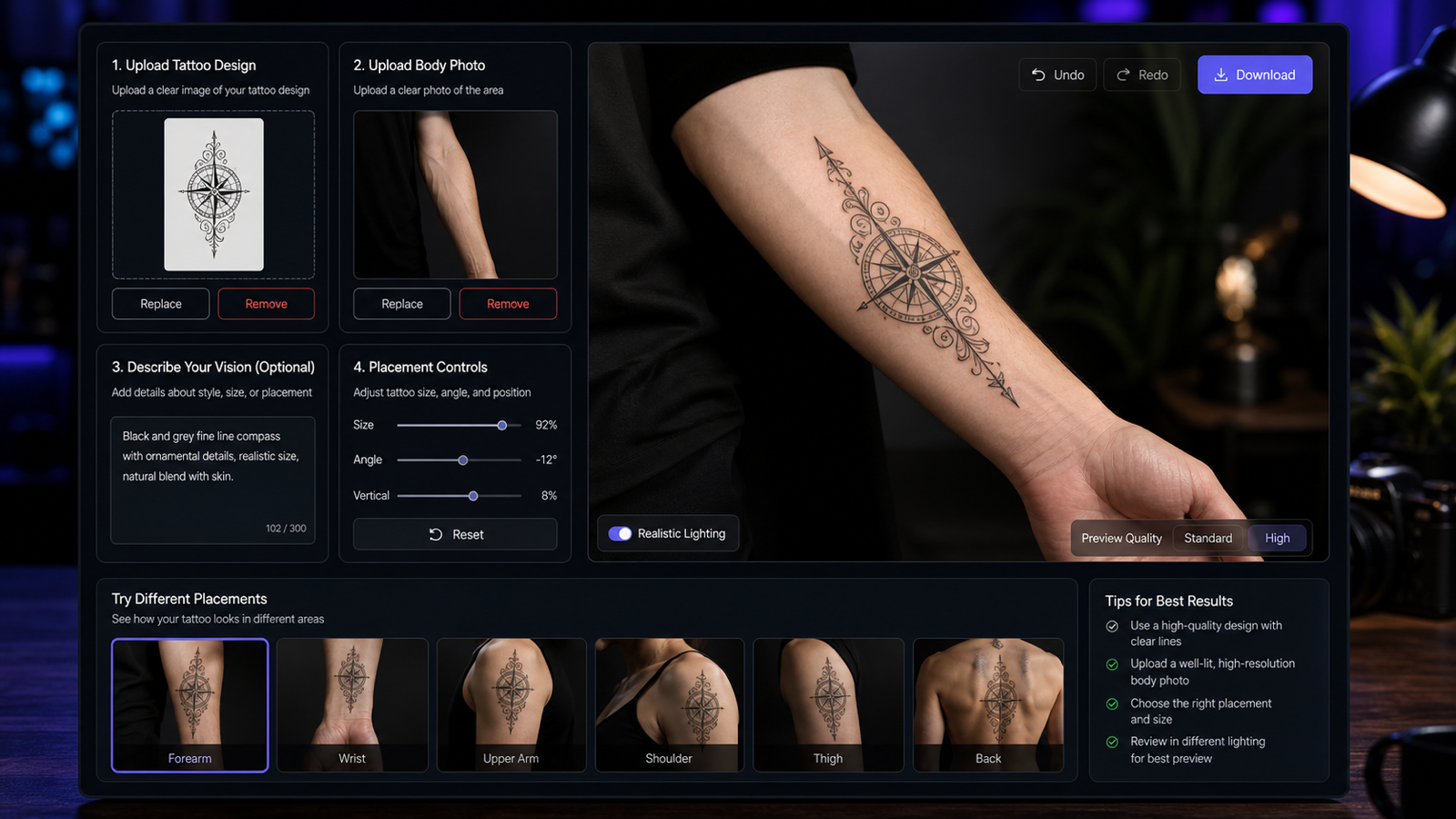
That is where AI tattoo try on tools are useful. With Tattoo AI Design, you can upload a tattoo design and a body photo, choose a placement template or write a custom prompt, then generate a realistic concept preview on skin.
Use this guide as a practical walkthrough for first-time tattoo planners, tattoo lovers, artists, and creators who want to preview tattoo placement before committing to a real appointment.
Current-source note: AI interfaces, pricing, privacy settings, generation limits, output quality, and available templates can change. Always check the live Tattoo AI Design pages before uploading personal photos or using previews commercially.

What AI Tattoo Try-On Means
AI tattoo try-on means using an AI tool to place a tattoo design onto a photo of a real body area. Instead of only seeing a design as a flat image, you can preview how it might look on an inner forearm, upper arm, wrist, shoulder, chest, back, thigh, neck, lower leg, ankle, or another placement area.
The goal is not to create a final tattoo stencil. The goal is to create a visual concept so you can compare placement, scale, angle, contrast, and readability before talking with a tattoo artist.
Tattoo AI Design is useful because it connects several parts of the planning workflow:
- Explore tattoo ideas and style inspiration.
- Generate a concept with the AI tattoo generator if you do not already have a tattoo image.
- Create a more directed reference with the AI tattoo design generator.
- Preview the design on a body photo with AI Tattoo Try On.
Think of the result as a consultation reference. It helps you communicate your taste and placement preference, but the final design still needs professional adjustment for anatomy, stencil clarity, line weight, skin movement, healing, and long-term readability.

Step-by-Step: How to Try On a Tattoo Online
Here is a simple workflow for using Tattoo AI Design:
- Choose or create a tattoo design. If you already have a tattoo image, prepare it as a clear reference. If not, use the tattoo generator first.
- Upload a clear body-part photo. Choose the body area you want to test, such as forearm, upper arm, back, thigh, wrist, shoulder, or neck.
- Select a template or write a custom prompt. Placement templates can help if you want a common area; a prompt gives more control over size, angle, and style.
- Check generation settings. Review ratio, resolution, privacy or Public settings, and any visible credit cost before generating.
- Generate the preview. Let the AI place the design on the body photo.
- Compare multiple placements. Test different sizes and body areas before making decisions.
- Save the best references. Bring the most useful previews to a tattoo artist for real placement advice.
On the Tattoo AI Design try-on page, the workflow is built around a tattoo-image upload panel, a body-part image upload panel, prompt or template controls, a Generate button, and image history. This makes it practical to test several versions without rebuilding the whole setup from scratch.
For your first test, keep the prompt simple. Ask for one placement, one size, and realistic skin blending. After that, refine the angle, scale, and design preservation.

Create a Tattoo Design First If You Do Not Have One
If you already have a tattoo image from your artist, sketchbook, or design file, you can use it directly as the tattoo upload. If you are still exploring, start with Tattoo AI Design's generator tools.
Use the AI tattoo generator for broad concept ideas like floral, minimalist, blackwork, fine line, traditional, watercolor, geometric, or symbolic designs. Use the AI tattoo design generator when you want a more structured custom tattoo reference from text.
For try-on previews, a good tattoo design image should be:
- Clear and high contrast
- Easy to read at small and medium sizes
- Free of background clutter
- Not copied from a specific artist's work
- Not dependent on tiny details that may blur on skin
- Suitable for the body area you want to test
Avoid treating AI tattoo concepts as final art. A professional artist may need to redraw the design, adjust line weight, simplify details, improve flow, and make it tattooable.

Take a Better Body Photo for Tattoo Try-On
Your body photo has a huge impact on the preview. A clear, well-lit photo helps the AI match angle, skin lighting, and contour more naturally.
Use these body photo tips:
- Photograph only the body area needed for the tattoo preview.
- Use natural or soft indoor light.
- Keep the skin area visible and uncluttered.
- Avoid harsh shadows, flash glare, and heavy filters.
- Keep the camera parallel enough that the body area is not distorted.
- Use a relaxed pose similar to how the tattoo will usually be seen.
- Avoid uploading overly sensitive or identifying photos.
- Check privacy settings before using personal body images.
For arm and leg placements, take one photo straight-on and one slightly angled. For back, shoulder, and chest placements, ask someone you trust to take a stable photo with even lighting.
Do not worry about making the photo glamorous. You want a practical placement reference with accurate skin area, angle, and contour.

Reusable Tattoo Try-On Prompt Formula
Use this formula when you want a realistic placement preview:
Try this tattoo design on my [body part]. Keep the tattoo design clear and readable. Match the angle, skin lighting, and body contour naturally. Placement: [inner forearm / upper arm / shoulder / wrist / back / thigh / ankle / chest]. Size: [small / medium / large]. Style: [fine line / traditional / watercolor / blackwork / neo traditional / minimalist / floral / geometric]. Make it look realistic on skin, but do not distort the original design.
The most important phrase is "do not distort the original design." Tattoo try-on tools can sometimes stretch designs too much when matching the body contour. If the design has faces, lettering, symmetry, or geometric linework, ask the AI to preserve readability.
For lettering, be extra cautious. A preview may look attractive online but still be too small, too curved, or too detailed for long-term skin readability. Bring lettering previews to a tattoo artist for sizing advice.

12 Copy-to-Use Tattoo Try-On Prompts
Use these prompts after uploading your tattoo design and body photo.
-
Try this floral tattoo design on my inner forearm. Keep the design medium-sized, vertical, and slightly curved with the arm shape. Make it look realistic on skin with natural lighting and clean edges.
-
Place this butterfly tattoo on my shoulder. Use a medium size, natural skin blending, and soft shadowing. Keep the wing details visible and avoid stretching the design.
-
Try this blackwork snake tattoo on my upper arm. Make it wrap slightly with the arm contour while keeping the head and body readable. Use realistic ink texture and natural placement.
-
Place this minimalist line tattoo on my wrist. Keep it small, delicate, and centered. Make the ink look subtle and realistic without making it too dark or oversized.
-
Try this rose tattoo design on my thigh. Use a medium-large size with balanced placement. Preserve the rose shape, petal details, and clean black linework.
-
Place this dragon tattoo across the upper back. Make it wide but balanced, following the shoulder line naturally. Keep the design sharp and avoid warping the face or claws.
-
Try this watercolor tattoo on my forearm. Keep the color splashes soft and natural on skin. Preserve the main flower shape and avoid making the colors look like paint floating above the body.
-
Place this geometric tattoo on my calf. Keep the lines straight, symmetrical, and readable. Match the leg angle and create realistic skin contact.
-
Try this small moon and stars tattoo behind the ear. Keep the design tiny, elegant, and simple. Make it look like real black ink on skin with natural lighting.
-
Place this tattoo design on my chest near the collarbone. Keep it balanced, not too large, and aligned with the body shape. Preserve all details and make the preview realistic.
-
Try this traditional dagger tattoo on my outer forearm. Use medium size, bold black lines, and natural skin blending. Keep the design vertical and centered.
-
Place this custom name tattoo on my rib area. Keep the lettering readable, elegant, and slightly curved with the body. Avoid distortion and make it look like real healed ink.
Prompting tip: create several versions with only one change at a time. For example, test small, medium, and large on the same forearm photo before changing the style or angle.

Compare Tattoo Placement, Size, and Style
A tattoo can look completely different depending on placement. Before you settle on one version, compare multiple placements side by side.
Useful comparisons include:
- Inner forearm vs outer forearm for visibility and flow
- Wrist vs upper arm for subtlety
- Shoulder vs upper back for wider designs
- Thigh vs calf for larger illustrated pieces
- Collarbone vs chest for small symmetrical designs
- Neck or behind-ear placement for tiny minimalist tattoos
Also compare size. A small design can feel elegant, but it may lose detail over time. A large design can preserve detail, but it may feel more visible than expected. Fine line, geometric, lettering, and watercolor-inspired tattoos especially need artist feedback because line durability and color behavior vary by skin, placement, and healing.
When you save previews, label them clearly: "inner forearm medium," "outer forearm large," "shoulder medium," or "wrist small." This makes the artist consultation much easier.

Prepare References for a Tattoo Artist
The best way to use AI tattoo try-on is as a communication tool. Bring your favorite previews to a professional tattoo artist and ask what needs to change.
Prepare a small reference pack:
- The original tattoo design image
- Two or three try-on previews
- The body area photo, if you are comfortable sharing it
- Notes on preferred size and placement
- Style references from the Explore gallery or your own inspiration
- A list of what you want preserved, such as flowers, symbols, line style, or lettering
- A list of what you are open to changing
Ask your artist about line thickness, negative space, scale, body flow, skin tone, aging, healing, and whether the design will remain readable in that placement. If the artist recommends simplifying the design, treat that as part of making the tattoo better, not as a downgrade.
AI helps you visualize. Tattoo artists help you make the design durable, safe, and wearable.

Safety, Privacy, and Realistic Expectations
AI tattoo previews are concept images. They are not final tattoo stencils, medical advice, or guarantees of how ink will heal on your skin.
Before making decisions, remember:
- Consult a professional tattoo artist for exact placement and sizing.
- Check whether fine lines, small lettering, or tiny details will age well.
- Consider skin tone, anatomy, movement, and long-term readability.
- Do not upload overly sensitive photos.
- Review platform privacy settings before using personal body images.
- Avoid copyrighted designs, copied artist styles, celebrity likenesses, or brand logos.
- Do not assume the AI preview represents final healed ink.
If you are nervous about a placement, generate more previews and wait a few days before deciding. A tattoo is permanent; the preview stage is the right time to be picky.

Related Articles and People Also Read
Related Articles:
- How to Try On the Tattoo on Your Body Photos: A Complete Guide to Virtual Ink
- How to Use an AI Tattoo Generator to Create Needle-Ready Designs in Minutes
- ChatGPT Image 2 for Tattoo Ideas: What's New, How to Prompt It, and When to Use a Tattoo Generator
- How to Use the Cherry Blossom Tattoo Generator for Sakura Tattoo Ideas
- How to Generate Fine-Line Tattoo Ideas with Tattoo AI Design's FineLine Tattoo Generator
- How to Create Striking Illustrative Tattoo Ideas with TattooDesign AI
People Also Read:
- Watercolor Tattoo Style Guide
- Neo-Traditional Tattoo Style Guide
- 31 Floral Tattoo Designs That Will Inspire You
- Watercolor Tattoos: Comprehensive Style Guide
- Use AI for Tattoo Ideas

FAQ
Can I try on a tattoo online before getting it?
Yes. You can use an AI tattoo preview tool to upload a design and body photo, then generate a concept preview on skin. Treat it as planning support, not a final stencil.
What if I do not have a tattoo design yet?
Start with Tattoo AI Design's tattoo generator or design generator. Create a clean concept first, then use AI Tattoo Try On to preview it on your body photo.
Which body areas can I preview?
You can test common placements such as arm, leg, chest, back, wrist, shoulder, neck, thigh, calf, ankle, collarbone, and other visible body areas depending on your uploaded photo and prompt.
Are AI tattoo previews accurate?
They can be useful for size, placement, and style exploration, but they are not exact. Real tattoo results depend on anatomy, stencil placement, artist technique, skin tone, healing, and long-term ink behavior.
Should I show the preview to my tattoo artist?
Yes. Bring the original design and your best try-on previews. A professional artist can adjust the design so it works better on skin.

Conclusion: Use AI Tattoo Try-On as a Smart Planning Step
Tattoo AI Design can help you move from abstract tattoo idea to realistic placement preview. You can explore tattoo ideas, generate custom concepts, upload a body photo, test different placements, refine size and style, and prepare better references for a professional artist.
The best results come from clear inputs: a readable tattoo design, a well-lit body-part photo, and a prompt that explains placement, size, style, and preservation. Use AI Tattoo Try On to compare options before committing, but rely on a tattoo artist for final sizing, line durability, body flow, stencil preparation, and safe execution.
In short: preview freely, decide slowly, and bring the strongest references to someone who knows how ink really lives on skin.